How to Fix GRUB Rescue Mode on Ubuntu Without Reinstalling
Encountering the GRUB rescue prompt can be alarming. This usually happens when the GRUB bootloader cannot locate its configuration files or the root filesystem. Common causes include disk repartitioning, failed updates, or filesystem errors. The symptoms often include errors like:
GRUB can't read the filesystem on (hd0,gpt1)(often the EFI partition)The prefix path to /boot/grub is invalid- Modules such as
normal.modfailing to load
Don’t panic—this issue is fixable without reinstalling Ubuntu. In this guide, we’ll walk you through manually booting your system from the GRUB rescue prompt and then repairing GRUB permanently from inside Ubuntu.
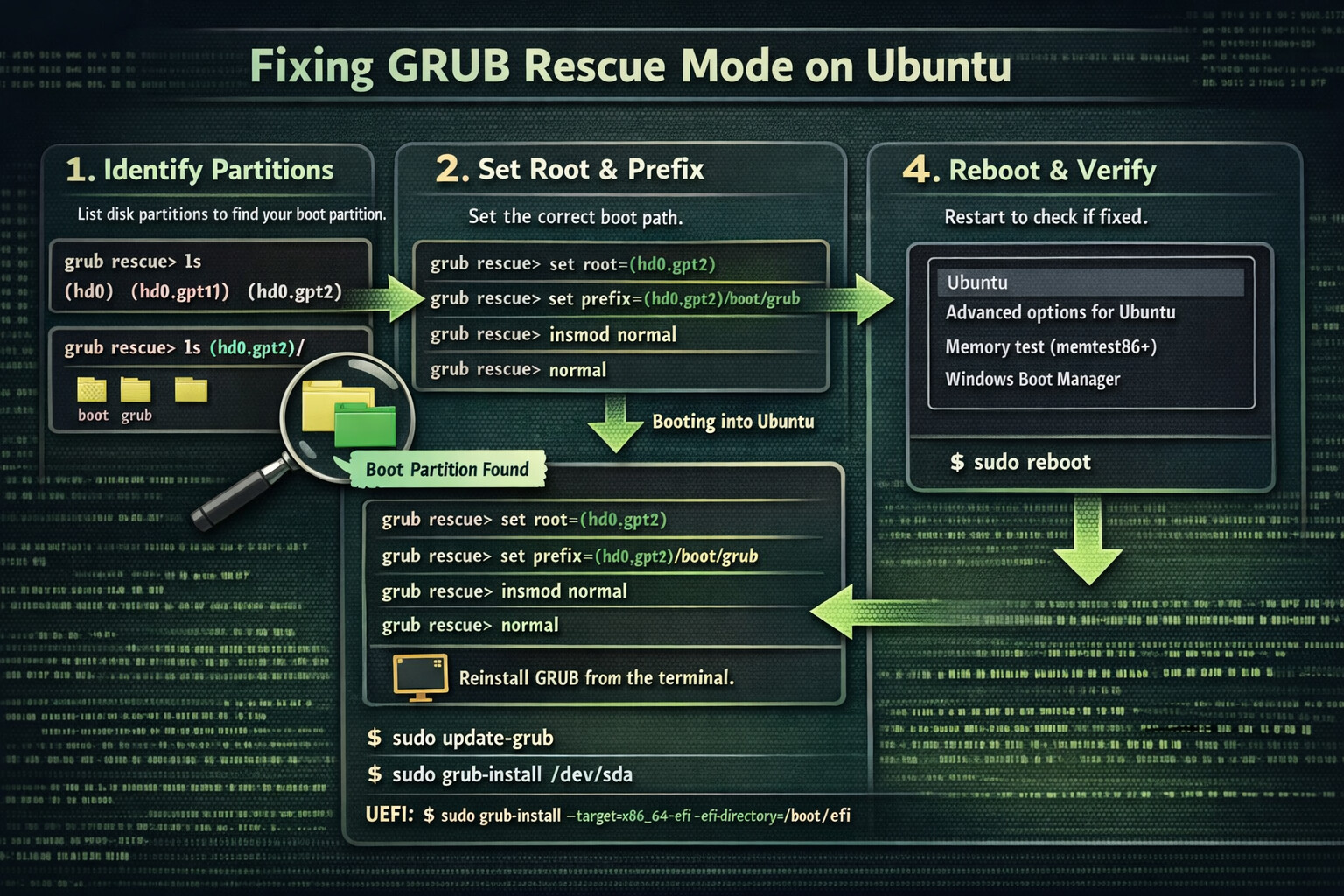
Step 1: Identify Your Disk Partitions
At the grub rescue> prompt, you first need to map your disks and partitions. GRUB uses hd0 for the first disk (typically your main SSD/HDD), and GPT partitions are labeled (hd0,gpt1), (hd0,gpt2), etc.
Run the following command:
ls
This will list all detected partitions, e.g.,
(hd0) (hd0,gpt1) (hd0,gpt2) (hd0,gpt3)
Next, check which partition contains your /boot/grub directory. For example:
ls (hd0,gpt1)/
ls (hd0,gpt2)/
You are looking for a listing that shows /boot or /grub folders. Usually, (hd0,gpt2) or (hd0,gpt1) is your boot or EFI partition.
Step 2: Set the Correct Root and Prefix
Once you’ve identified the partition containing GRUB, you can set the correct root and prefix. Replace (hd0,gptX) with your partition:
set root=(hd0,gpt2)
set prefix=(hd0,gpt2)/boot/grub
insmod normal
normal
set rootpoints to the partition with your root filesystem.set prefixpoints to the GRUB folder inside/boot.insmod normalloads the normal GRUB module.normalboots into the normal GRUB menu.
If successful, Ubuntu will start normally.
Step 3: Repair GRUB Permanently
Once logged into Ubuntu, open a terminal and run:
sudo update-grub
sudo grub-install /dev/sda
update-grubregenerates GRUB configuration files.grub-installreinstalls GRUB to the disk’s bootloader.
If your system uses UEFI, you may need to reinstall GRUB specifically to the EFI partition:
sudo grub-install --target=x86_64-efi --efi-directory=/boot/efi --bootloader-id=ubuntu --recheck
sudo update-grub
Step 4: Reboot and Verify
After reinstalling GRUB, reboot your system:
sudo reboot
You should now see the normal GRUB menu, and Ubuntu should boot without entering rescue mode.
Tips and Notes
- Always note the correct partition for
/bootand EFI. Mistakes here will cause repeated rescue prompts. - If
lsin GRUB shows(hd0,gptX)as unknown filesystem, the partition may be corrupted. In that case, consider running a filesystem check from a live USB:
sudo fsck /dev/sdaX
- Avoid frequent repartitioning of disks with Ubuntu installed, as this is a common cause of GRUB failure.
Conclusion:
GRUB rescue mode doesn’t mean your data or system is lost. By identifying your partitions, manually booting, and repairing GRUB from Ubuntu, you can recover your system without reinstalling. Always ensure backups are available before performing disk operations.