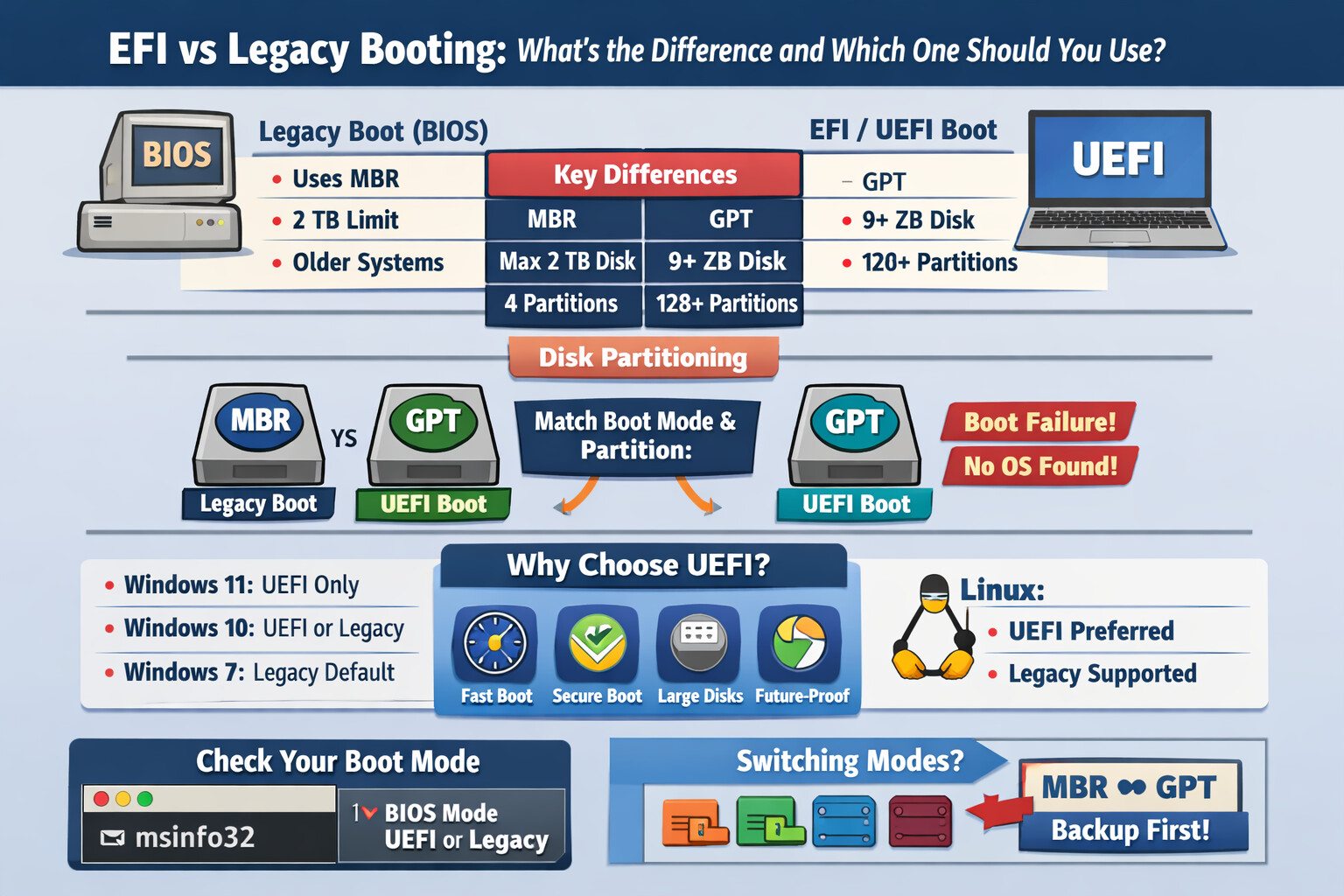
EFI vs Legacy Booting: What’s the Difference and Which One Should You Use?
When installing or troubleshooting an operating system, one of the most important (and often confusing) decisions is choosing between EFI (UEFI) and Legacy (BIOS) boot modes. While both serve the same purpose—starting your computer—they work very differently and have significant implications for performance, security, and compatibility.
This guide explains EFI vs Legacy booting, their differences, and which option is best for modern systems.
What Is Legacy Boot (BIOS)?
Legacy Boot, commonly known as BIOS (Basic Input/Output System), is the traditional boot method used by computers for decades.
How Legacy Boot Works
- BIOS initializes system hardware
- It reads the Master Boot Record (MBR) from the disk
- The bootloader loads the operating system
Limitations of Legacy Boot
- Supports disks up to 2 TB only
- Limited to 4 primary partitions
- No built-in security features
- Slower boot times
- Vulnerable to MBR corruption
Legacy boot still exists mainly for backward compatibility with older hardware and operating systems.
What Is EFI / UEFI Boot?
EFI (Extensible Firmware Interface), commonly implemented as UEFI, is the modern replacement for BIOS.
How UEFI Boot Works
- UEFI firmware initializes hardware
- Reads boot entries from firmware (NVRAM)
- Loads the bootloader from the EFI System Partition (ESP)
- Starts the operating system
UEFI stores boot files in a dedicated FAT32 partition instead of relying on a single boot sector.
Key Differences Between EFI and Legacy Boot
| Feature | Legacy (BIOS) | EFI / UEFI |
|---|---|---|
| Firmware type | Old | Modern |
| Disk partition style | MBR | GPT |
| Max disk size | 2 TB | Over 9 ZB |
| Max partitions | 4 primary | 128+ |
| Boot speed | Slower | Faster |
| Secure Boot |  No No |
 Yes Yes |
| OS support | Older OS | Modern OS |
| Reliability | Lower | Higher |
Disk Partitioning: MBR vs GPT
Boot mode and disk partitioning must match:
- Legacy Boot → MBR
- UEFI Boot → GPT
Using the wrong combination often results in:
- “No bootable device”
- “Operating system not found”
- Installation failures
Operating System Compatibility
Windows
- Windows 11: UEFI required
- Windows 10: Supports both (UEFI recommended)
- Windows 7: Legacy by default (UEFI needs extra setup)
Linux
- Fully supports UEFI
- Legacy supported but discouraged for new installations
Why UEFI Is Recommended Today
UEFI offers several major advantages:
 Faster boot times
Support for large modern disks
Secure Boot protection against rootkits
Better recovery options
Future-proof design
Faster boot times
Support for large modern disks
Secure Boot protection against rootkits
Better recovery options
Future-proof design
For most users and businesses, UEFI is the clear choice.
When Should You Use Legacy Boot?
Legacy boot may still be useful if:
- You’re running very old hardware
- Using an OS or tool that does not support UEFI
- Maintaining compatibility with older systems
Otherwise, Legacy mode should be avoided for new deployments.
How to Check Your Current Boot Mode
On Windows
- Press Win + R
- Type
msinfo32 - Check BIOS Mode
- UEFI or Legacy
Check Disk Partition Style
- Open Disk Management
- Right-click disk → Properties → Volumes
- Look for GPT or MBR
Can You Switch Between EFI and Legacy?
Yes, but with caution:
- Legacy → UEFI
- Convert disk from MBR to GPT
- Enable UEFI in firmware
- Tools like
mbr2gptcan help
- UEFI → Legacy
- Often requires reinstalling the OS
Always back up data before switching.
Conclusion
EFI (UEFI) booting is faster, more secure, and designed for modern computing. Legacy boot exists mainly for compatibility with outdated systems.
 For new installations, always choose UEFI with GPT.